

How MyACB Brokerage Import Works
Skip the column mapping. A walkthrough of how MyACB reads your brokerage's CSV export, and when it asks for your help.
MyACB Brokerage Import has been available for several months now, but it never got a proper introduction. So here’s how it works.
When we first launched importing, every file went through the same wizard. You mapped your columns and transaction types yourself, unless someone had already shared a mapping for your brokerage with the community. If they had, you could apply it in one click.
With MyACB Brokerage Import, you can skip all of that for most Canadian brokerages. Upload the CSV your brokerage gives you, and MyACB recognizes the format and reads it for you. No column mapping, no type mapping. You can see which brokerages are supported, and what gets imported from each, on the brokerages page.
Anything that doesn’t affect your ACB, like cash dividends, deposits, interest, and fees, is skipped. You’ll see those rows listed as ignored in the preview, so nothing disappears silently.
How It Works
1. Upload your CSV
Go to the import page and drop in the file exactly as your brokerage gave it to you. Try not to open it in Excel and re-save it first. Excel likes to “fix” dates and numbers, and somehow the fix is always worse. Files need to be CSV, under 1MB, and no more than 5,000 rows. If you have a lot of history, split it into a few files by year.
2. MyACB detects the brokerage
MyACB looks at the headers and the first few rows and figures out where the file came from. If it’s confident, you’ll see a screen telling you which brokerage it found and what kinds of transactions it supports. Click Use MyACB Brokerage Import to continue.
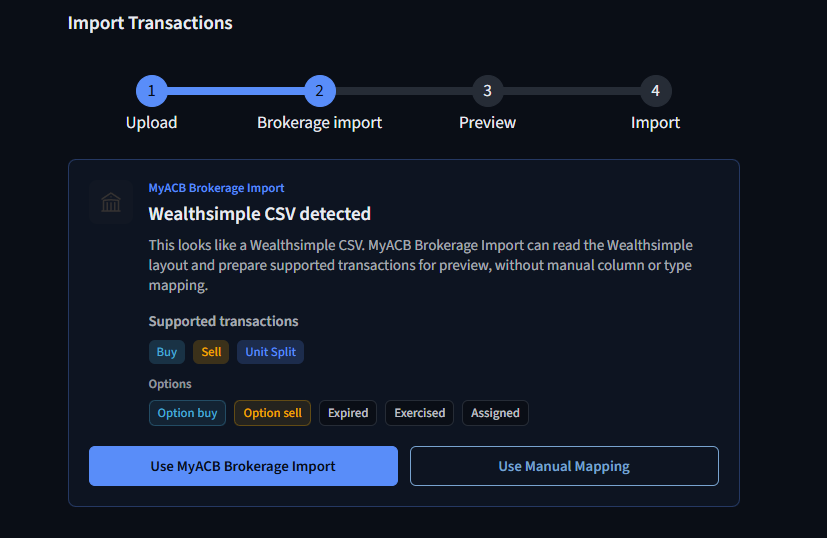
If it can’t tell, you land on the regular mapping screen. There’s a Try MyACB Brokerage Import box at the top where you can pick your brokerage from the list, and MyACB will check the file against it. If it still doesn’t match, manual mapping, community schemas, and your own saved mappings are always there as a fallback.
3. Confirm dates (sometimes)
Believe it or not, almost every brokerage uses a different date format, and some are downright diabolical. Take 03/04/2025. Is that March 4th or April 3rd? When MyACB isn’t sure, you’ll need to confirm the format. Most imports skip this step.
4. Review anything that needs a human (sometimes)
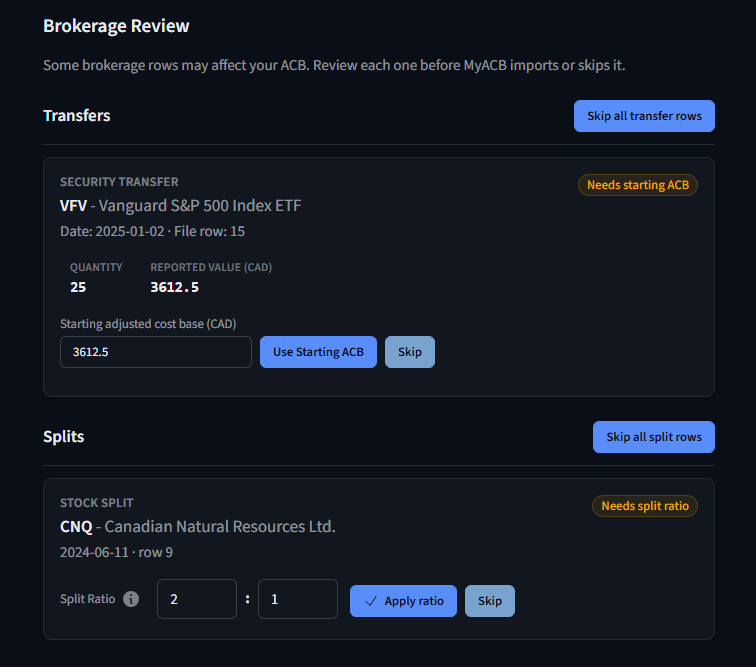
A lot of brokerages don’t put enough information in their exports to rebuild a full history of your portfolio. Some decided tickers weren’t necessary. Others record that a split happened but not what the ratio was. MyACB would rather ask than guess, so in those cases you enter or confirm the missing details yourself:
- Missing tickers. Some exports only have a security description, not a symbol. You confirm the ticker once and it applies to every row for that security.
- Splits. If the split ratio isn’t in the file, you enter it.
- Transfers in. When shares arrive from another account, the file doesn’t know what you originally paid. You can enter the starting ACB.
You can confirm or skip each one. If there’s nothing to review, you won’t see this step at all.
5. Preview and import
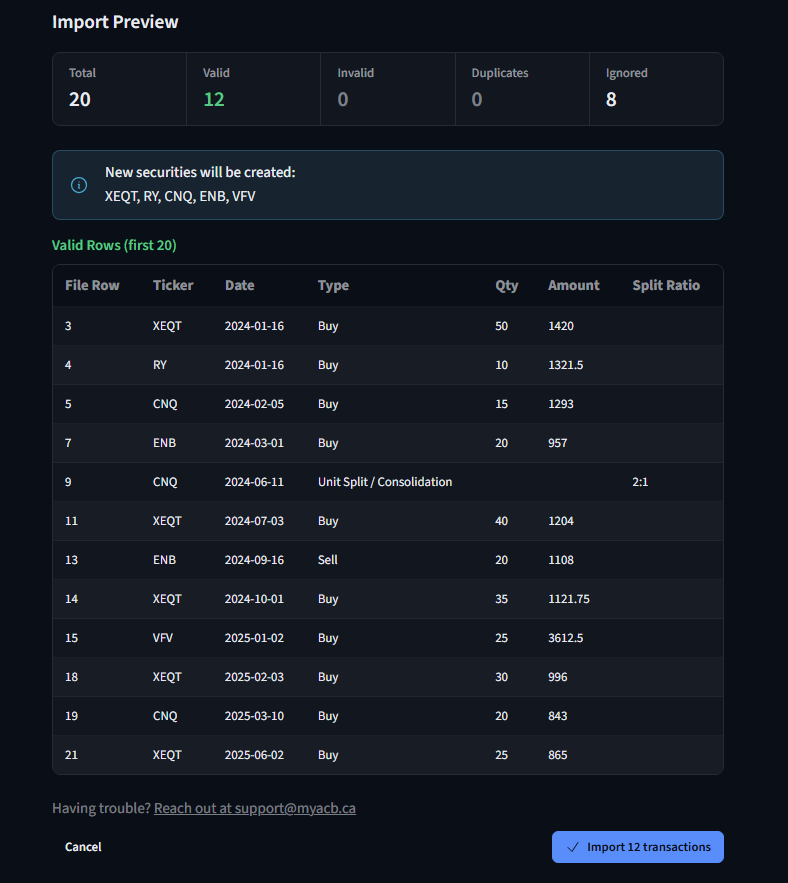
From here it’s the same preview as any other import: valid rows, invalid rows, duplicates, ignored rows, and any new securities that will be created. Duplicates of transactions you already have are excluded automatically, so re-importing an overlapping date range is safe. Once everything looks good and you’re ready, click Import. As always, your ACB is recalculated for every affected security.
US Dollar Transactions
If your file has USD trades, each one needs a CAD exchange rate to calculate ACB correctly.
On a paid plan, MyACB fills in missing rates automatically using Bank of Canada data. On the free plan, you can add an exchange_rate column to your CSV with the rate for each row, and MyACB will pick it up. Otherwise those rows show as invalid in the preview so you know exactly which ones need attention.
Brokerage Not Listed?
The import wizard still works with any CSV. Map your columns once, save the schema, and share it to the community marketplace so the next person doesn’t have to. Popular community schemas are a big part of how we decide which brokerage to support next.
If your brokerage isn’t supported yet and you’d like it to be, let us know.
What Comes Next?
We’ll keep adding brokerages when we can.
You might be wondering why you have to download a file at all. Why doesn’t MyACB just connect to your brokerage account? Because Canadian brokerages don’t offer a good way to share read-only access to your account.
Open banking is supposed to fix that. Canada has been studying it since 2018, and it has been “just around the corner” ever since, through several reports, consultations, and budget announcements. We’re not holding our breath. If it ever does arrive, MyACB will support it. Until then, the CSV export is the tried and true way in.
This article is for informational purposes only and does not constitute tax, legal, or financial advice. Tax rules can change and individual circumstances vary. Consult a qualified tax professional for advice specific to your situation.
0 Comments
Log in to join the discussion.
No comments yet. Be the first to comment!